
.png)
.png)


 183
183
Setting Up the Headset MCP Server
Connect Claude or ChatGPT directly to your Headset data. Once connected, you can ask questions in plain English ("How did flower sales trend over the last 8 weeks?", "Which SKUs are about to stock out?") and the AI pulls live answers straight from your Headset account.
The Headset MCP server uses the Model Context Protocol (MCP), an open standard that lets AI assistants securely call tools on your behalf. Everything is read-only: the AI can query your data, but it can never change anything in Headset.
What you'll need
- A Headset account with an active Retailer, Bridge, or Insights subscription. The tools you see after connecting match your subscription, so a Retailer user sees the retailer tool set, a Bridge user sees the bridge tool set, and users with both see both.
- A paid Claude plan (Pro, Max, Team, or Enterprise) or a ChatGPT plan with connector support (Plus, Pro, or Business with developer mode enabled).
- The connection details below.
Connection details
| Setting | Value |
|---|---|
| Server URL | https://mcp.headset.io |
| OAuth Client ID | Leave blank (not required) |
| OAuth Client Secret | Leave blank (not required) |
| Authentication | OAuth (you sign in with your normal Headset login) |
Adding Headset to Claude
Claude Pro and Max (individual plans)
- Open Claude (web or desktop) and go to Settings > Connectors.
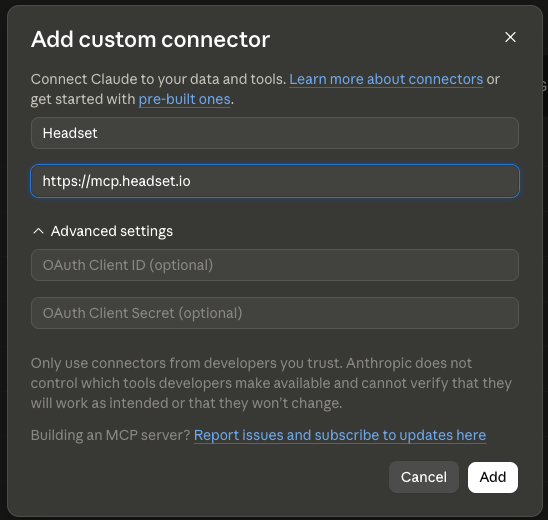
- Click Add custom connector.
- Enter a name (for example, "Headset") and paste the server URL:
https://mcp.headset.io - Click Add.
- Click Connect next to the new Headset connector. You'll be redirected to the Headset sign-in page. Log in with your Headset credentials and click Allow Access.
Claude Team and Enterprise
An organization Owner adds the connector once, then every member can connect their own Headset login:
- Owner: Go to Organization settings > Connectors, click Add, choose Custom > Web, and enter the server URL and Client ID as above.
- Members: Go to Settings > Connectors, find the Headset connector, and click Connect to sign in with your own Headset credentials.
Each user authenticates individually, so everyone only ever sees the stores and data their own Headset account can access.
Using it in a chat
In any conversation, click the + (attachments/tools) button, choose Connectors, and make sure Headset is toggled on. Then just ask a question:
What were my total sales last week?
The first time a tool runs, Claude may ask you to approve it. All Headset tools are read-only, so it's safe to allow them.
Verify it's working
After connecting, try these in a fresh chat:
Which Headset accounts and stores do I have access to?
What were my top 10 products by revenue in the last 30 days?
If the AI lists your stores and returns real numbers, you're all set.
Troubleshooting
The connector won't authenticate. Double-check the Client ID was pasted exactly, with no leading or trailing spaces, and that the Client Secret field is empty. Then try disconnecting and reconnecting.
I connected, but the AI says it has no Headset tools. Make sure the connector is toggled on in the conversation (the + menu in the chat composer). If it is, confirm your Headset account has an active Retailer or Bridge subscription; the server only lists tools your subscription includes.
I get "unauthorized" errors after it was working. Your sign-in session expired. Disconnect and reconnect the connector to sign in again.
A tool returns a "subscription required" message. A few tools (like competitive menu intelligence) require an add-on that isn't on your account. The message tells you what the add-on unlocks; reach out to [email protected] if you'd like it enabled.
Still stuck? Contact Headset support and include which AI client you're using (Claude or ChatGPT), your plan, and a screenshot of the error.


