.png)
.png)


Tips and Tricks
Having difficulty getting results to populate on your reports? Filters can often be the cause of report errors. Below are some tips and tricks on how our dashboard filters work.
It is always good practice to select your filters fresh from left to right when running a new report. From time to time filters can follow you from the previous reports and result in errors or incorrect data.
Date Range Filter:
There are many prefix options when selecting a date range to analyze.
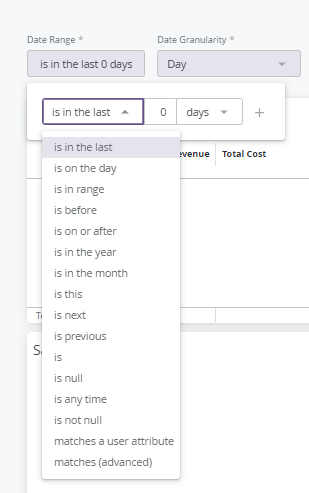
Using the "Is In Range" option allows you to set a custom time frame to analyze. This date range filtering does work a bit differently than others.
Is In Range: Use this filter to analyze a specific date range. You will see the words “until before” between your date selections. This means the final date must go to the day after the time frame you are analyzing.

For example: If you are looking to analyze the month of January 2023 you will need to select the dates as follows. 2023/01/01 (until before) 2023/02/01. Using February 1st will ensure you receive all data from your start date and all days before February 1st.
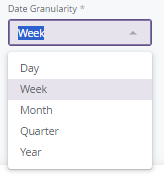
Then use the date granularity filter to select how you would like the data broken down. This selection will need to fit your date range. Keeping with January 2023, you can choose to break down your results by day, week, or month. You would not use quarter or year when looking at one month of data.
You will also see filters showing “Is Any Value” These filters will pull all available data unless otherwise specified.
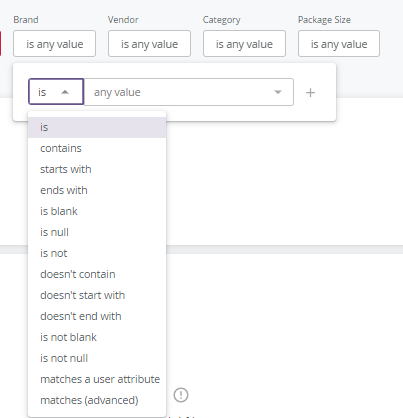
You can also use the "Contains" filtering optoin to find multiple brands, categories, ect that contain the same key word. Using the brand filter as an example:
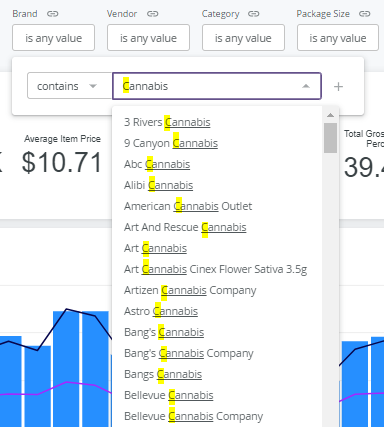
“Contains”: Use this prefix to include all brands which include a specific word. This filter is very specific. Capitalization and spelling have to be exact.
Using “contains”: Cannabis you can see that the C must be capitalized to match the brands available.
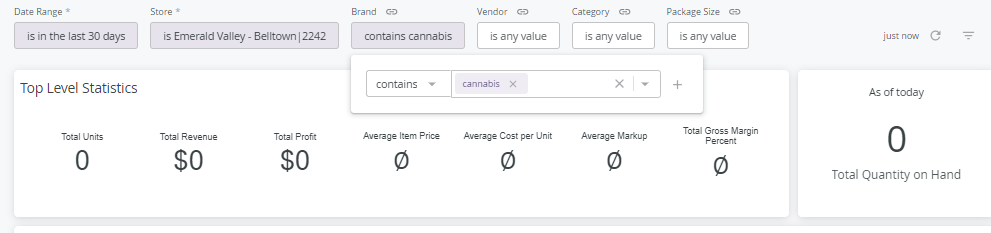
Using a lowercase C for Cannabis yields no results.
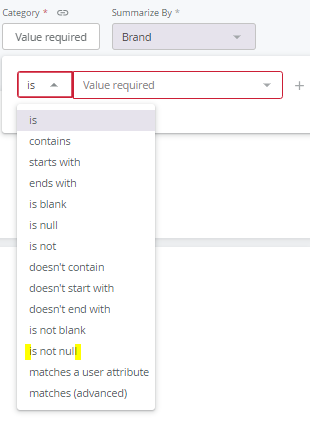
You may also see filters labeled “Value Required”. When a filter selection is required, the filter box will be outlined in red. This means you must select a filter option there for the report to run properly.
If you are looking to include all options you can use the prefix “is not null” This will automatically select all available filter options.
Filter options with a circle allow only one option to be selected.
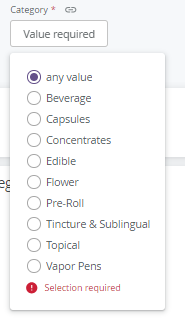
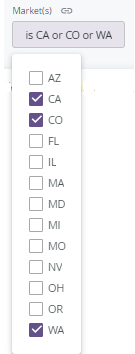
While filters with squares are multi-select.